
Box Model - Understanding Element Dimensions
Documentation for Box Model - Understanding Element Dimensions.
Box Model - Understanding Element Dimensions
What is the Box Model?
The CSS Box Model is a fundamental concept that describes how every HTML element is represented as a rectangular box. Each box consists of four areas:
- Content - The actual content (text, images, etc.)
- Padding - Space between content and border
- Border - The edge around the padding
- Margin - Space outside the border
Understanding the box model is crucial because it affects how elements are sized and spaced on the page.
Why is the Box Model Important?
Before understanding the box model, developers struggled with unexpected element sizes and spacing. The box model helps by:
- Predictable sizing - Know exactly how big an element will be
- Proper spacing - Control space inside and outside elements
- Layout control - Build precise layouts
- Debugging - Understand why elements don't fit as expected
Visual Box Model Diagram
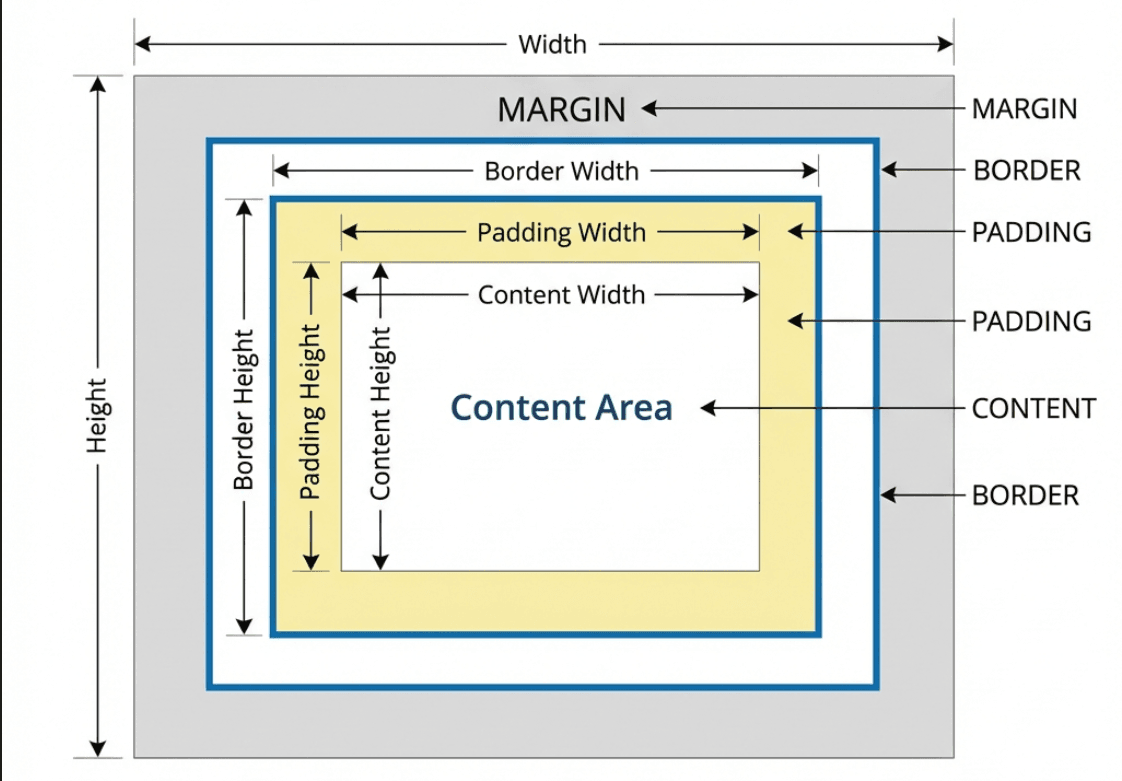
The diagram above shows how each element is composed of four layers:
- Margin (outermost) - Transparent space outside the border
- Border - The edge around the padding
- Padding - Space between content and border (has background color)
- Content - The actual content area
Box Model Properties - Quick Reference
| Property | Description | Example | Default |
|---|---|---|---|
width | Content width | width: 300px; | auto |
height | Content height | height: 200px; | auto |
padding | Space inside border | padding: 20px; | 0 |
padding-top | Top padding | padding-top: 10px; | 0 |
padding-right | Right padding | padding-right: 15px; | 0 |
padding-bottom | Bottom padding | padding-bottom: 10px; | 0 |
padding-left | Left padding | padding-left: 15px; | 0 |
border | Border shorthand | border: 1px solid black; | none |
border-width | Border thickness | border-width: 2px; | medium |
border-style | Border style | border-style: solid; | none |
border-color | Border color | border-color: red; | currentColor |
margin | Space outside border | margin: 20px; | 0 |
margin-top | Top margin | margin-top: 10px; | 0 |
margin-right | Right margin | margin-right: 15px; | 0 |
margin-bottom | Bottom margin | margin-bottom: 10px; | 0 |
margin-left | Left margin | margin-left: 15px; | 0 |
box-sizing | How size is calculated | box-sizing: border-box; | content-box |
Detailed Explanation
1. Content Area (width & height)
What it does:
The content area is where your actual content (text, images, etc.) appears. width and height control the size of this area.
Syntax:
element {
    width: value;
    height: value;
}
HTML Example:
<div class="box">Content goes here</div>CSS Example:
.box {
    width: 300px;
    height: 200px;
    background-color: lightblue;
}
Result: A light blue box that is 300px wide and 200px tall.
Common values:
px- Fixed pixels:width: 300px;%- Percentage of parent:width: 50%;auto- Browser calculates:width: auto;vw/vh- Viewport units:width: 50vw;
Real-world scenario:
You want a sidebar to be exactly 250px wide regardless of screen size. Use width: 250px;.
2. Padding - Space Inside
What it does: Padding creates space between the content and the border. It's inside the element and takes the element's background color.
Syntax:
/* All sides */
padding: 20px;

/* Vertical | Horizontal */
padding: 10px 20px;

/* Top | Horizontal | Bottom */
padding: 10px 20px 15px;

/* Top | Right | Bottom | Left (clockwise) */
padding: 10px 15px 20px 25px;
HTML Example:
<div class="padded-box">
    This text has space around it inside the box
</div>
CSS Example 1 - Equal padding:
.padded-box {
    padding: 20px;
    background-color: #f0f0f0;
    border: 2px solid #333;
}
Result: 20px of space on all sides between the text and the border.
CSS Example 2 - Different padding:
.button {
    padding: 10px 20px; /* 10px top/bottom, 20px left/right */
    background-color: #007bff;
    color: white;
    border: none;
}
CSS Example 3 - Individual sides:
.card {
    padding-top: 20px;
    padding-right: 15px;
    padding-bottom: 20px;
    padding-left: 15px;
    background-color: white;
    border: 1px solid #ddd;
}
When to use:
- Creating breathing room inside elements
- Making buttons and cards more spacious
- Preventing text from touching borders
Real-world scenario:
You have a button with text that's touching the edges. Add padding: 10px 20px; to create space inside the button.
3. Border - The Edge
What it does: The border is a line around the padding and content. It can have width, style, and color.
Syntax:
/* Shorthand: width style color */
border: 2px solid black;

/* Individual properties */
border-width: 2px;
border-style: solid;
border-color: black;

/* Individual sides */
border-top: 1px solid red;
border-right: 2px dashed blue;
border-bottom: 3px dotted green;
border-left: 4px double orange;
Border Styles:
solid- Solid linedashed- Dashed linedotted- Dotted linedouble- Double linegroove- 3D groovedridge- 3D ridgedinset- 3D insetoutset- 3D outsetnone- No border
HTML Example:
<div class="bordered-box">Box with border</div>CSS Example 1 - Simple border:
.bordered-box {
    width: 200px;
    padding: 20px;
    border: 2px solid #333;
    background-color: white;
}
CSS Example 2 - Different borders:
.fancy-border {
    border-top: 3px solid #007bff;
    border-right: 1px solid #ddd;
    border-bottom: 1px solid #ddd;
    border-left: 1px solid #ddd;
}
CSS Example 3 - Rounded borders:
.rounded {
    border: 2px solid #007bff;
    border-radius: 8px; /* Rounds the corners */
    padding: 15px;
}
When to use:
- Visual separation between elements
- Creating cards and containers
- Highlighting active elements
Real-world scenario:
You want to create a card with a subtle border. Use border: 1px solid #ddd; for a light gray border.
4. Margin - Space Outside
What it does: Margin creates space outside the border, between the element and other elements. Margins are transparent (don't have background color).
Syntax:
/* All sides */
margin: 20px;

/* Vertical | Horizontal */
margin: 10px 20px;

/* Top | Horizontal | Bottom */
margin: 10px 20px 15px;

/* Top | Right | Bottom | Left (clockwise) */
margin: 10px 15px 20px 25px;

/* Centering */
margin: 0 auto;
HTML Example:
<div class="box1">First Box</div>
<div class="box2">Second Box</div>
CSS Example 1 - Space between elements:
.box1 {
    margin-bottom: 20px;
    padding: 15px;
    background-color: lightblue;
}

.box2 {
    padding: 15px;
    background-color: lightgreen;
}
Result: 20px of space between the two boxes.
CSS Example 2 - Centering:
.centered-box {
    width: 600px;
    margin: 0 auto; /* Centers horizontally */
    padding: 20px;
    background-color: #f0f0f0;
}
CSS Example 3 - Negative margin:
.overlap {
    margin-top: -10px; /* Pulls element up */
    padding: 15px;
    background-color: white;
    border: 1px solid #ddd;
}
Margin Collapse: When two vertical margins meet, they collapse into a single margin (the larger one).
<div class="top-box">Top</div>
<div class="bottom-box">Bottom</div>
.top-box {
margin-bottom: 30px; /* This wins */
}
.bottom-box {
margin-top: 20px; /* Ignored */
}
/* Actual space between: 30px, not 50px */When to use:
- Creating space between elements
- Centering elements horizontally
- Pushing elements away from edges
Real-world scenario:
You want to center a container on the page. Set a fixed width and use margin: 0 auto;.
5. box-sizing Property
What it does: Controls how the total width and height of an element is calculated.
Values:
content-box(default) - width/height applies to content onlyborder-box- width/height includes padding and border
Syntax:
box-sizing: content-box | border-box;HTML Example:
<div class="content-box">Content Box</div>
<div class="border-box">Border Box</div>
CSS Example - Comparison:
.content-box {
    box-sizing: content-box;
    width: 200px;
    padding: 20px;
    border: 5px solid black;
    /* Total width: 200 + 40 (padding) + 10 (border) = 250px */
}

.border-box {
    box-sizing: border-box;
    width: 200px;
    padding: 20px;
    border: 5px solid black;
    /* Total width: 200px (includes padding and border) */
}
Best Practice - Global border-box:
* {
    box-sizing: border-box;
}
Why border-box is better:
- More intuitive sizing
- Easier calculations
- Padding doesn't break layouts
- Industry standard
Real-world scenario:
You set a div to width: 50% and add padding: 20px. With content-box, it overflows the parent. With border-box, it stays at 50%.
Box Model Calculation Examples
Example 1: content-box (default)
.box {
    box-sizing: content-box;
    width: 300px;
    padding: 20px;
    border: 5px solid black;
    margin: 10px;
}
Calculations:
- Content width: 300px
- Padding: 20px × 2 = 40px
- Border: 5px × 2 = 10px
- Total element width: 300 + 40 + 10 = 350px
- Space taken (with margin): 350 + 20 = 370px
Example 2: border-box
.box {
    box-sizing: border-box;
    width: 300px;
    padding: 20px;
    border: 5px solid black;
    margin: 10px;
}
Calculations:
- Total element width: 300px (includes padding and border)
- Content width: 300 - 40 (padding) - 10 (border) = 250px
- Total element width: 300px
- Space taken (with margin): 300 + 20 = 320px
Common Patterns
Pattern 1: Card Component
<div class="card">
    <h3>Card Title</h3>
    <p>Card content goes here</p>
</div>
.card {
width: 300px;
padding: 20px;
margin: 20px;
border: 1px solid #ddd;
border-radius: 8px;
background-color: white;
box-shadow: 0 2px 4px rgba(0,0,0,0.1);
box-sizing: border-box;
}Pattern 2: Centered Container
<div class="container">
    <h1>Page Content</h1>
    <p>Centered on the page</p>
</div>
.container {
max-width: 1200px;
margin: 0 auto;
padding: 0 20px;
box-sizing: border-box;
}Pattern 3: Button
<button class="btn">Click Me</button>.btn {
padding: 12px 24px;
border: 2px solid #007bff;
border-radius: 4px;
background-color: #007bff;
color: white;
cursor: pointer;
box-sizing: border-box;
}
.btn:hover {
background-color: #0056b3;
border-color: #0056b3;
}Debugging the Box Model
Browser DevTools:
- Right-click element → Inspect
- Look at the "Box Model" diagram
- See exact values for margin, border, padding, content
Visual debugging:
* {
    outline: 1px solid red; /* Shows all element boundaries */
}
Related Topics
- [[15-Borders|Borders]] - Border styles and properties
- [[07-Position-Property|Position]] - Element positioning
- [[08-Flexbox|Flexbox]] - Flexible layouts